

PRUServices, is now enhanced to bring everything together.
From policies and payments to claims and healthcare services, managing your insurance needs is easier than ever, with multiple language options available at just a click.
Log in to PRUServices now at pruservices.prudential.com.my

The 2025 Income Tax Submission Statement and Annual Statement is now available on PRUServices.
Discover all the features

Update Profile
View Documents

Make payments & pay for family
Sign up for Auto Deduction

Submit a Claim
Track Claims

Find Healthcare Providers

No Claims Benefit
View My Investment
The e-Policy and change of policy details' slip on PRUServices is only available for PAMB policies issued from July 2016 onwards.
Watch Our Video
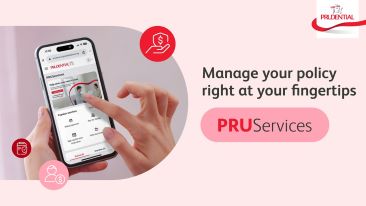
Experience the newly enhanced PRUServices
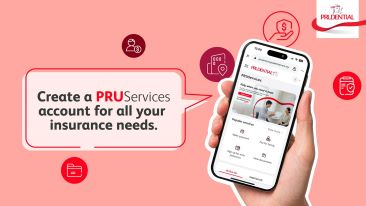
Account Creation Video Guide
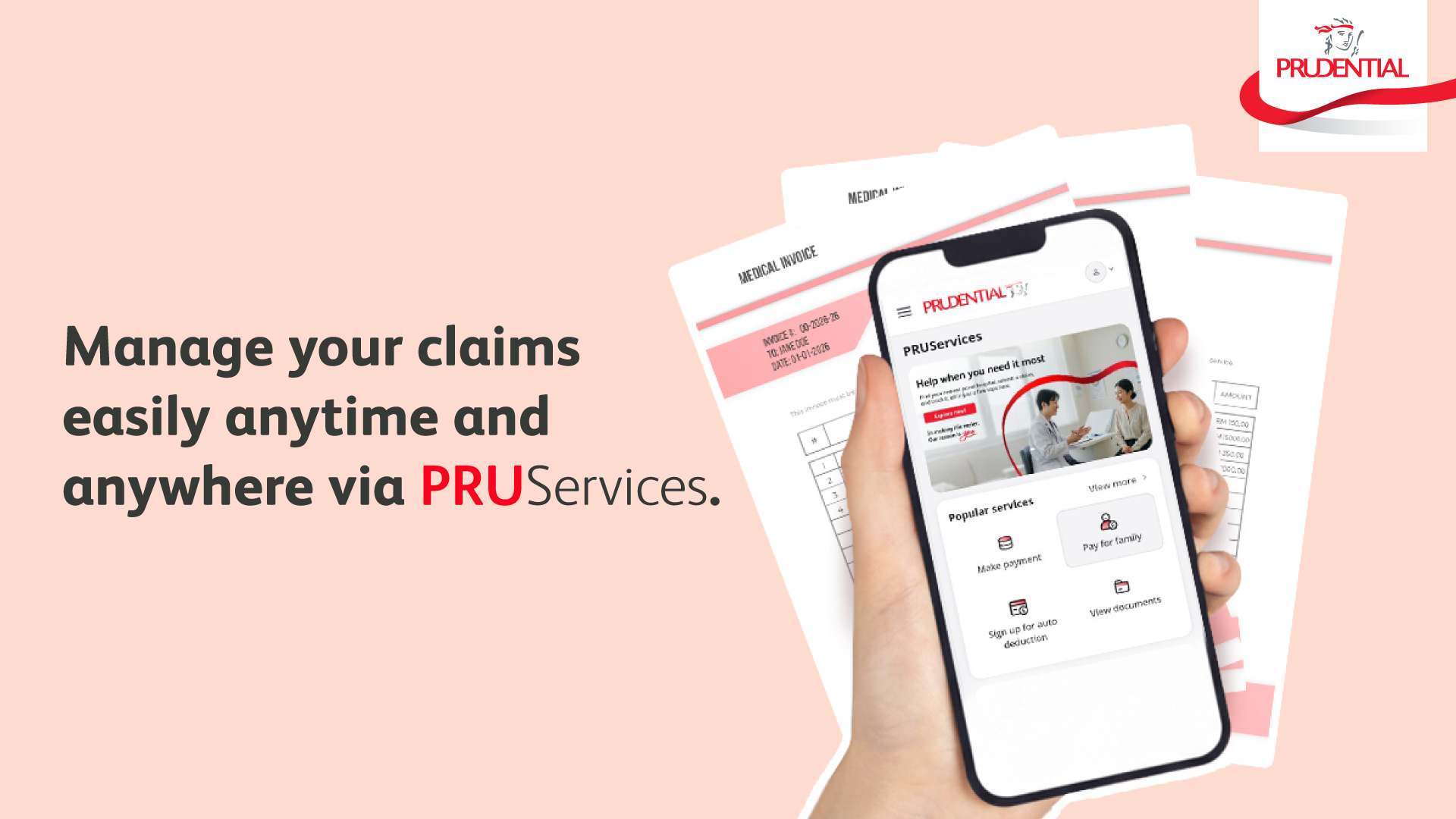
Submit and Track Claims Video Guide
How to access PRUServices
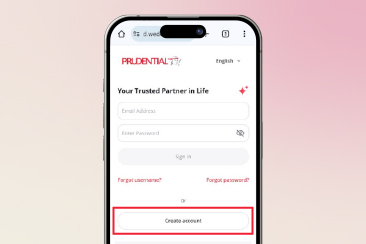
Step 1:
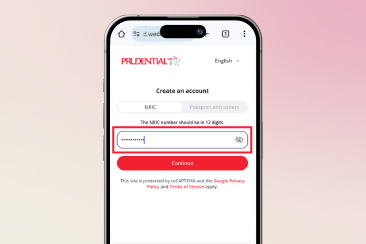
Step 2:
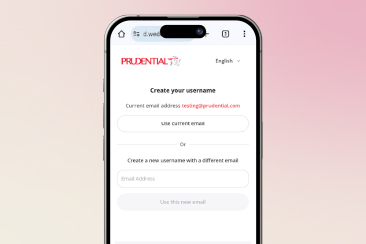
Step 3:
Frequently Asked Questions
General
-
What is enhanced PRUServices?
Enhanced PRUServices is our upgraded customer platform that makes it easier for you to manage your policies and claims anytime, anywhere. Here’s what’s new:
-
Fresh New Look
A clean, modern design that’s simple and easy to use
-
New and Improved Capabilities
More features and smarter tools for managing policies and claims
It is now accessible via a new URL https://pruservices.prudential.com.my -
-
What services are available on the enhanced, mobile-friendly PRUServices?
Profile
-
Change Personal Details – Mobile number, Email address, All Contacts (Residential phone, Business phone, Residential address), Marketing Consent (PAMB Marketing Consent, Third Party Marketing Consent)
-
Correspondence Address
-
Payment Setting – Payout Account
Payments
-
Make payment (include payment for Auto Revival)
-
Pay for family
-
Change payment frequency
-
Sign up for auto deduction
-
Change payout account
-
Payment history
Claims
-
Submit a claim
-
Track claims
Health
-
View e-Medical card
-
Submit a claim
-
Find healthcare providers
Investments
-
View my investment
Documents
View documents categorized under the following sections and types:
-
e-Policies (Policy Documents & Changes to policy benefits)
-
Statements (up to 3 years) (For Income Tax Submission, Annual Statements)
-
Letters
-
Payments
-
Changes to Policy Benefits
-
Changes to Policy/ Personal Details
-
BNM's Interim Measures & Medical Revision Notification Letter
-
Health & Claims
-
Cash Value Payout
-
Lapsed Policy & Reactivation
-
-
Notices
-
Campaigns
-
About your Agent
-
Notifications
-
-
Receipts
-
E-receipts
-
Others (Strictly for EPF Products)
-
Update Personal Details
-
Change Beneficiary (Applicable only for PRUCare Family & PRUGuard Family)
-
Cancel Policy (Applicable only for PRUCare Family & PRUGuard Family)
-
Surrender Policy (Applicable only for PRUCare Family & PRUGuard Family)
-
-
Who is eligible to create account PRUServices account?
You may create account and link your policies if you are a Prudential policyholder (Assured). Person Covered (Life Assured) will not be able to create accounts using their NRIC or Passport/others.
-
Who can access the policy information and perform transactions in PRUServices?
Only the Prudential policyholder (Assured) who has created a PRUServices account and successfully linked their policies can view policy details and perform transactions within PRUServices.
-
How do I access the PRUServices?
-
If you are new to PRUServices, you can create a new account with below steps:
Step 1 - Visit PRUServices at https://pruservices.prudential.com.my
Step 2 - Click on the "Create account" and key in NRIC or Passport/Others to link policy
Step 3 – Create email account and set your password -
If you are an existing PRUServices user, you may sign in with below steps:
Step 1 – Visit PRUServices at https://pruservices.prudential.com.my
Step 2 – Sign in using your email address and password
Step 3 – Retrieve the OTP from the sign-in email to access your PRUServices account.
Note: We adopt two-step verification process (password and OTP) for added security to protect your account from unauthorized access.
-
-
Do I need to create account with the email address that is registered with Prudential?
No, you can use any email address to create your PRUServices account. However, we recommend updating your profile with your latest email address to ensure you receive important notifications from us.
-
Can I use my current PRUServices login ID to access the newly enhanced PRUServices?
Yes. If you are an existing PRUServices user, you do not need to create a new account. You can log in using your current email and password.
-
Can I use the same email linked to my Prudential account outside Malaysia to register for PRUServices?
Yes, you can sign up for PRUServices using the same email address you used for your Prudential account outside of Malaysia.
-
Can I login to PRUServices if I do not have an email?
No, you can’t. You will not be able to login as creating a PRUServices account requires an email address.
-
What should I do if I forgot the email address for signing in?
If you have forgotten the email address used for your PRUServices account, you can retrieve your username by following these steps:
Step 1: On the PRUServices login page, click ‘Forgot Username.’
Step 2: Enter your NRIC or Passport number and click ‘Continue.’
Step 3: Enter the OTP sent to your registered mobile number.
Step 4: Your email address (used as the username) will be displayed. Click ‘Back to Sign In’ to continue accessing PRUServices.
-
What should I do if I have forgotten my password?
If you have forgotten your password, you can reset your password by following these steps:
Step 1 - On the PRUServices login page, click ‘Forgot password.’
Step 2 - Enter username email and click ‘Continue.’
Step 3 - Enter the OTP sent to the username email
Step 4 – Reset new password, follow the password rules:
a. 8 to 16 characters long
b. Includes at least 1 number
c. Includes both uppercase and lowercase letters
d. Includes at least 1 special character in !@#$%^&+= -
What should I do if I do not receive the One Time Password (OTP) on my mobile phone or email during policy linkage?
Firstly, please confirm that you have registered your mobile number or email address with Prudential. If the mobile number or email is incorrect or not registered with Prudential, you will not be able to receive the OTP.
For mobile number, you may check and unblock the SMS short code setting on your mobile. Click resend OTP after the 120 seconds countdown.
Should the above troubleshooting be done, and you are still not receiving the OTP, do contact Prudential Customer Service for further assistance
-
I changed my mobile number or email address through an agent or customer service. Can I get the OTP right away to link my policy(s)?
You may perform your policy linkage the next day.
-
How many failed password and One‑Time‑Pin (OTP) attempts are allowed before the account is locked?
Your account will be temporarily locked for 15 minutes after 6th incorrect password or OTP attempts. You may try again after 15 minutes.
-
How long will customer remain sign-in due to inactivity?
It will be 15 minutes before you are being logged out.
-
I have PruBSN certificate(s). Can I view and manage my certificate(s) on the PRUServices?
No, PRUServices by PAMB does not apply to PruBSN certificates.
-
What languages are supported by the PRUServices?
The PRUServices is available in English, Bahasa Malaysia and Chinese language.
-
Will there be a mobile app version for the PRUServices?
Stay tuned for our upcoming mobile app version.
-
What is minimum OS (Operating System) versions supported by PRUServices?
The minimum version/specification for PRUServices are:
Mobile Browser
-
Android version 24 and above.
-
iOS 13 and above
PC Web Browser
-
macOS 10.15 and above
-
Microsoft Edge version 141 and above
-
Google Chrome version 141 and above
-
Mozilla Firefox version 143 and above
-
Safari version 15.6 and above
-
Payment
Make payment
-
What payment methods can I use in PRUServices?
-
Make payment - for making a one-time payment: You can use Visa/Mastercard (Credit/Debit Card), Online Banking (FPX), and E-wallets such as Boost and Touch ‘n Go.
Note: American Express (Amex) is not accepted. -
Make payment and sign up for auto deduction: You can only use Visa or Mastercard.
-
-
What types of payments can I make via PRUServices?
You can pay the following via PRUServices.
(a) Renewal Premium
(b) Auto-revival Payment
(c) Policy Loan Payment
(d) Automatic Premium Loan (APL) Payment
(e) Advance Payment -
Can I use credit or debit card issued by foreign banks to make payments?
PRUServices accepts MasterCard or Visa credit cards issued by local or foreign banks, as well as debit cards issued by local banks. American Express (Amex) cards are not accepted.
-
Can I save my payment card details for future payment?
Yes, you have an option to save the payment card details upon making payment.Note: This is not a registration of auto-deduction payment for your future premium. -
Can I make an advance premium payment for my policy via the PRUServices?
Yes, you can. You may pay premiums in advance for up to 12 months from the current date. -
If I have an outstanding Automatic Premium Loan (APL) amount due in my policy, can I make an advance premium payment?
Yes, you can proceed to make advance payment even if policy has outstanding APL amount. However, you must first pay all outstanding amounts and the current premium due before making any advance payment. -
Can I make multiple payment entries for the same policy on the same day?
Yes, you can. Multiple payments for the same policy can be made on the same day. -
As a policyholder, can I pay for all my children’s policies in one transaction?
Yes, you can. Simply go to the PRUServices homepage, click “Make Payment”, and select all the policies you want to pay for. The total amount will be calculated automatically for you. -
How do I know if my payment was successful?
Once your payment is completed, you’ll see a “Payment Successful” confirmation screen with your payment details. -
Will I receive any notification upon successful payment?
Yes, you can view and download the acknowledgment immediately after completing the payments. This will be available to download under Payment history.Additionally, you will receive *SMS and email once premium applied. You may also download e-Receipt from Documents > Receipts.
For payments made before 10pm, the processed and reflected in PRUServices is within 1 working day.For payments made after 10pm, the processed and reflected in PRUServices is within 2 working days.
*Based on mobile number / email address record with Prudential. Please ensure that your contact details with Prudential are accurate and updated.
Pay for Family
-
What is Pay for Family?
You have the option to pay for your family without logging to each policyholder (Assured)’s account for payment. Family means spouse (husband/ wife), parents, grandparents, sister, brother, grandchild, legal guardian, nephew, niece, stepfather, stepmother, stepchild, uncle, aunty, cousin sister/ brother. -
How many policies can I pay for family?
You can add up to 5 policies at most.
To make future payments easier, you can add family policies and manage up to 50 policies conveniently. These policies will then be saved in your payment list. With this, my Favourite icon ❤️ will be displayed on each of the policy that have saved. -
How do I proceed with Pay for Family?
At Homepage > under Popular services > go to Pay for Family > click ‘+ policy’ > Fill up your family policy (ies) details > Pay with your preferred payment method. -
Can I change/ sign up for auto deduction during Pay for Family?
Yes, you can click ‘Yes’ to ‘Set up auto deduction for your eligible policies.
Sign up for auto deduction
-
What is ‘sign up for auto deduction’ on the PRUServices?
This is to register your credit or debit card for your recurring premium payments for your policies. -
Can I register a credit/debit card issued by foreign banks?
You can register MASTER or VISA credit cards issued by local or foreign banks or a debit card issued by local banks*. Amex card is not applicable.*Subject to your bank’s confirmation on the usage of your debit card for recurring billing. -
Why do I receive an SMS alert for RM1.00 charged to my credit/debit card when I sign up for an auto deduction on PRUServices?
RM1.00 is charged by iPay88 for pre-authorisation of the credit/debit card used for online enrolment. This amount would not be charged to you in the credit/debit card statement.
Note: There is a note on the iPay88 screen to notify you when you perform the online enrolment. -
Can I register the recurring premium payment for multiple policies at one go?
If you are the policyholder (Assured), you can register for multiple policies at one go in the transaction page.
Change payment frequency
-
What is Change Payment Frequency?
Under the ‘Change Payment Frequency’ section, you may opt to change the frequency of your policy premium payment, such as from monthly to quarterly, half-yearly or yearly, or vice versa, depending on your preference and the terms of your policy.
Should you decide to reduce the frequency of payments, e.g., monthly to half-yearly, etc., you are required to pay the premium in full up to the next policy anniversary before the change can be processed. -
Can I pay the balance of premium (if any) in PRUServices under change payment frequency?
Yes, you can make payment for balance of premium during change of payment frequency (if any) by using Credit/Debit Card, Online Banking (FPX) or E-wallet (Boost and Touch n’ Go).
Payment history
-
Can I view/ download payment history after payment made on the PRUServices?
Yes, you can view/ download your payment record under ‘Payment’ section > ‘Payment history’ after payment transaction is complete.
Health and Claims
View e-Medical card
-
Where do I view and download my e-Medical Card on PRUServices?
-
Go to the PRUServices homepage.
-
Click on the Popular services icon – View more.
-
Under the Health tab, select View e-Medical Card.
-
A list of all your policies with a medical card will appear. Click Download to view your e-Medical Card.
-
-
Is there any limit how many times I can download the e-Medical Card?
There is no limitation. You may download as many times needed. -
Is it necessary to present the e-Medical Card for hospitalisation?
The e-Medical Card provides you with an easily accessible reference to your medical plan, including the name of the plan and the policy number.
Note: Your NRIC is required for identity verification during hospital admission, in line with current practice.
Submit a claim
-
What claim types can I submit through PRUServices?
You may reimburse the following claims through PRUServices:-
Hospitalisation/Day Surgery
-
Inpatient treatment
-
Day Surgery
-
-
Outpatient Treatment
-
Pre-hospitalisation Treatment
-
Post-hospitalisation Treatment
-
Outpatient Cancer Treatment
-
Outpatient Kidney Dialysis
-
Emergency Accidental Treatment
-
Home Nursing Care
-
Wellness Care or Fertility Care
-
-
-
How do I submit my claim via PRUServices?
You may refer to Claim Submission User Guide to submit your claim via PRUServices.
-
What are the documents required for Submit a Claim?
You can refer to the Document Checklist available in PRUServices during the claims submission process. This checklist provides guidance on the specific documents required based on the type of claim selected.
-
How many invoices/ bills are allowed per claim submission through PRUServices?
You can submit up to three (3) invoices/ bills for each claim submission via PRUServices.
Note: The three (3) invoices/ bills is referring to three (3) event dates.
-
Do I required to submit the original receipts to Prudential upon successful claim submission via PRUServices?
No, you do not need to submit original receipts to Prudential as has been successfully uploaded through PRUServices. However, please ensure that the uploaded images are clear, complete, and legible to avoid delays in processing
Note: In certain cases, the claims team may request original documents for verification. If this is required, customers will be contacted directly.
-
What are the advantages of self-service submission compared to agent submission?
Self-service submission streamlines the process for you, making it more convenient and efficient.
-
What happens if I select the wrong policy or claim type during submission?
Don’t worry—claims will be processed based on your best available benefits. If the selected policy or claim type doesn’t match the actual coverage, we will contact you and ensure the claim is handled appropriately.
-
How can I track the progress of my submitted claim?
You will receive updates on your claim status through:
-
SMS notifications
-
A call from our Claims Team if additional information is required
-
Online tracking via the Track Claims feature in PRUServices
-
-
How long does it take to process a claim?
The estimated timeframe is within 14 working days upon receiving the complete claim document.
-
How can I submit my outstanding claim requirements?
You can submit the requirement via below:
-
Dedicated email address (which will be stated in requirement letter)
-
Customer Engagement Centre (branches)
-
Contact servicing agent
-
-
What should I do if I miss the deadline to submit the required documents and the claim has been closed?
If the claim has been closed due to missed deadlines, you can resubmit the claim as a fresh submission along with the required documents via PRUServices.
-
What happens if I accidentally close my browser while submitting a claim?
If you exit the browser before completing the claim submission, you may need to restart the process from the beginning as the save draft function currently unavailable.
-
What should I do if my direct credit fails?
If a direct credit attempt fails, you will receive an SMS and a notification letter asking you to update your payout account details to ensure future payments are processed successfully.
-
If I have questions about the requirements received, whom should I contact?
You can call our Contact Centre or visit the nearest Customer Engagement Centre for assistance.
Track Claims
-
What is Track claims?
The Track Claims feature lets Prudential policyholders easily monitor the status of their medical reimbursement claims anytime, anywhere.
Please note: This feature is currently not available for personal accident, major claims, or other claim types.
-
How can I track my claims in PRUServices?
You can track your claims on PRUServices by following these steps:
Step 1: In PRUServices homepage, click Track claims under Claims tab from the top bar or popular services.
Step 2: Landed in Track claims page, search the claim no. using the search bar or filter options such as person covered (life assured), claim status and submission date.
-
What types of claim status can I track in PRUServices?
You can track the following claim status through PRUServices between:
-
Open claims Tab
-
Submitted
-
In Review
-
Action required
-
Approved
-
Pending payment
-
-
Claims history Tab
-
Paid
-
Declined
-
Closed
-
-
-
What is the maximum date range for viewing claims in PRUServices?
You can retrieve medical reimbursement claim records for up to 3 years from the submission date. To view specific claims, use the date range filter options available in Track Claims.
-
Will I be notified if there are outstanding requirements for my claims?
Yes, you will receive a notification about your claims via SMS. Meanwhile, you can also view any outstanding requirements, including due dates and the list of documents, within the Activity Timeline on the Track claims page. -
How can I view and check the details of completed claims in PRUServices?
You can view your medical reimbursement claims under the Claims history tab on the Track claims page. Completed claims may have one of the following statuses:
-
Paid
-
Closed
-
Declined
To check the details of a specific claim, customers can go to the Activity Timeline page. For more information about the claim status, they can click the “View Letter” button available on that page.
-
Find healthcare providers
-
What is the “Find healthcare providers” feature in PRUServices?
This feature helps you to easily locate the nearest PRUPanel Plus hospitals and search for doctors within our trusted network, including those under PRUPanel hospitals.
-
Who can access the Find healthcare providers feature, and what details does it provide?
All PRUServices users can access this feature. It provides a comprehensive list of panel hospitals, detailed hospital information including facilities, profiles of doctors and PRUPanel Plus benefits within our trusted network.
-
Can I use the Find healthcare providers feature to view all hospitals across Malaysia?
This feature displays only Prudential’s panel hospitals, starting with PRUPanel Plus, followed by PRUPanel hospitals.
-
What is the benefit when location services are enabled when searching for hospitals and doctors?
If location services are enabled, you can adjust your location and distance filters, and the search will be based on your current location.
-
What is the Map View feature in Find healthcare providers?
This feature lets you visually locate panel hospitals and doctors on an interactive map using selected filters. When you click on a marker, it displays the hospital or doctor’s name, location, and key details.
-
How can I contact my preferred hospital through PRUServices, and what benefits are offered by the hospital?
On the Hospital Details page in Find healthcare providers, you can view the following information:
-
Full hospital address
-
Contact details such as phone number and website
-
List of available facilities
-
PRUPanel Plus and PRUPrestige benefits
-
Directions to the hospital
-
List of doctors available at the hospital
-
-
What does PRUPanel Plus refer to in Find healthcare providers?
PRUPanel Plus refers to a nationwide network of carefully selected panel hospitals and specialist centres by Prudential Assurance Malaysia Berhad (PAMB), providing enhanced care and great value for customers.
-
What does PRUPrestige label refer to in Find healthcare providers?
PRUPrestige refers to a selected panel hospital providing complimentary privileges, including medical suite upgrades, for PRUPrestige customers.
-
How can I check if my chosen hospital is part of PRUPanel Plus or offer PRUPrestige benefits?
Hospitals that are part of PRUPanel Plus or offer PRUPrestige benefits will have a label indicator displayed on their information card.
-
Will the list of doctors be updated periodically?
The doctor’s listing will be updated promptly whenever we receive the latest information from the hospital.
-
Can I view a doctor's contact details and schedule an appointment directly from this page?
No, this page only provides hospital contact information. Currently, it is intended for viewing details only and does not support appointment booking.
-
Can I give feedback on the doctor/hospital facilities through this portal?
No, this platform does not support submitting feedback on hospitals or doctors. However, you can call our Contact Centre for assistance with your feedback.
Documents
View & Download Documents
-
Where can I view and download documents in PRUServices?
You can access the Documents section from the navigation bar or through Popular services > View Documents. Select the document you want to download, click the View icon, and it will open in a new tab. -
How can I view annual statements for my policies?
You can view or download your annual statements under ‘Documents’ section> select Category ‘Statements and e-invoices' > ‘Annual Statements’ and apply the filter: ‘All time’.
-
How can I view and download Life Assurance Premium Statements (LAPS) and e-Invoices?
-
From the navigation bar, select ‘Documents’, or from the homepage, go to Popular services, click ‘View documents’.
-
Under Category, select ‘Statements and e-invoices’.
-
Apply the filter ‘All Time’.
-
In the dropdown menu, choose ‘For Income Tax Submission’ and 'e-Invoice'
-
Locate the Life Assurance Premium Statements (LAPS) and e-Invoices in the list.
-
Click the ‘View’ icon next to the document you want to download
-
-
How many years of previous statements are available on PRUServices?
Statements are available for the most recent 3 years.
-
Can I view my policy document and endorsement slips on PRUServices?
Yes, provided your e-policy document and endorsement slips are issued from 1 July 2016 onwards. You can go to ‘Documents’ section> select category ‘ePolicies’ > filter by ‘All time’.
-
How many years of past correspondence letters are available on PRUServices?
You can view all your correspondence and notification letters starting from the date your policy commenced.
-
Can I view my e-Receipts?
Yes, you can view your e-Receipts under the ‘Receipt’ category.
Note: This applies only to policies that support e-Receipts. Payments made via auto deduction (recurring) do not generate e-Receipts under the current process.
Policy Info
Policy Viewing
-
Where can I have an overview of my policy information on PRUServices?
On the PRUServices homepage, click on the selected policy to view information including Overview, Benefits, Payment, Value and Fund Details (applicable only to investment-linked policies).
-
Where can I view my Nomination, Trustee and Assignee’s details on the PRUServices?
On the PRUServices homepage you can click the selected policy > Overview tab > scroll down > Beneficiary/ Nominee/ Trustee details’ card.
No Claims Benefit
-
How do I access the No Claims Benefit (NCB) marketplace?
You can select the policy from the policy card and see the No Claims Benefit’ tag if the policy is eligible for NCB. You will be directed to NCB marketplace to view the NCB details and redeem if you are eligible for NCB.
For more details, customers may refer to PMCare User Guide and FAQ at Prudential Corporate Website under ‘Services & Claims’.
Change contact details
-
What is Change Contact Details on the PRUServices?
You can change the following contact details in PRUServices:
(a) Mobile
(b) Email
(c) Residential phone (if any), Business phone (if any), and Residential address
(d) Correspondence address -
Can I update different correspondence address for each of my policy?
Yes, you can update via PRUServices
-
Homepage > Profile icon or
-
Homepage > Popular services > Change personal details
-
Change payout account
-
What is Change Payout Account?
You can update your bank account details via PRUServices to receive payout from Prudential (if any).
-
Do I need to provide my bank account information for each of my policies if I have more than one policy with Prudential?
No. You can update your bank account information for multiple policies in one go using any of the following methods via PRUServices:
-
Option 1: Go to Profile > Payment Settings > Payout Method
-
Option 2: From the Navigator Bar select Payments > Change Payout Account
-
Option 3: Go to Popular Services > Change Payout Account
-
-
Can I update my bank details when policy status is Inactive (Ceased)?
Yes, you can update bank account when policy status is inactive to receive payout.
-
Is my foreign bank accounts acceptable for Change Payout Account?
No. The bank account must be maintained with financial institutions in Malaysia that support MEPS and Interbank Giro (IBG) services.
-
Will I receive any notification upon successful change payout account?
Yes, you will receive SMS, Email and Confirmation letter. Confirmation letter for each policy will be available in Documents > Letters > Changes to Policy/Personal Details.